















































Set Up Tracking Numbers
The first step to tracking leads from phone calls is to set up a tracking phone number for your website. This ensures that every call is properly attributed to the marketing source, campaign, or keyword that led the customer to contact you.
Tip: For an overview of how call tracking works, see What is Call Tracking?
Add a Tracking Number
Follow these steps to add your first tracking phone number.
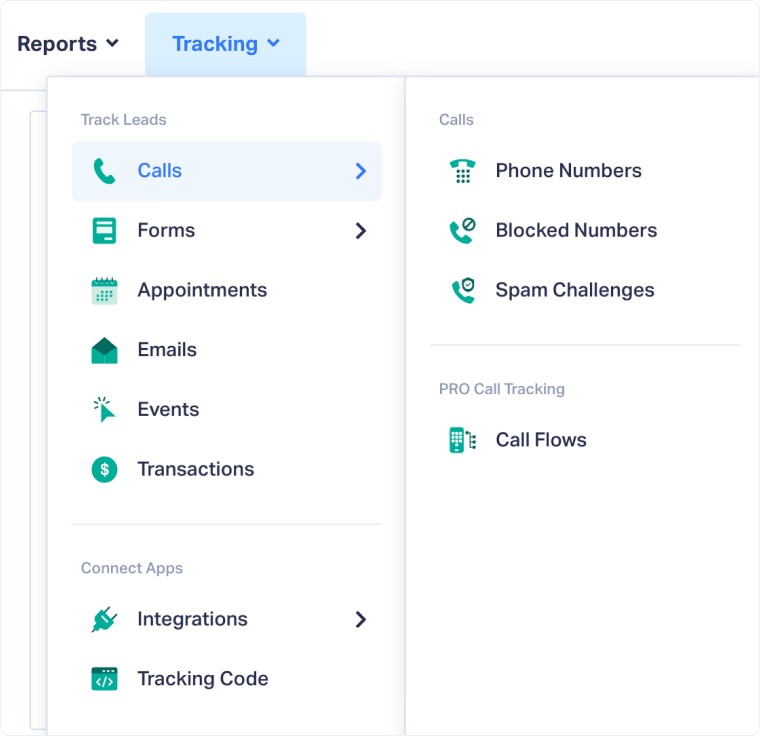
- In your WhatConverts profile, select "Tracking" from the top menu.
- Choose "Calls", then "Phone Numbers".
- Click "+ Add Phone Number".
- To track your website's calls, select "Typical Setup" and click "Next Step".
- Follow the guide to determine how many numbers you'll need for your website.
- Choose the country, phone number type (local or toll-free), and area code.
- Click "Find Numbers".
- Review the preselected numbers and click "Next Step".
- Add a destination number and click "Next Step".
- Complete the prompts to configure your tracking number features:
- Call Recording: Record incoming calls for review and training.
- Call Greeting: Play a short message to the caller before connection.
- Call Whisper: Play a short message to the call recipient before answering.
- Tracking Text Messages: Enable text tracking for supported numbers.
- Call Transcription: Automatically transcribe call audio for quick review.
- Call Analysis: Categorize calls by type or quality.
- PCI Redaction: Mask sensitive financial data for compliance.
- Once you've reviewed and selected your desired features, click "Finish".
Note: If your destination number (where calls are forwarded) differs from the number shown on your website, you can edit the swap number (the number WhatConverts replaces on your site) by clicking “Edit Pool.”
You can find this option under the source column on your phone numbers page.
Related Topics
Get a FREE presentation of WhatConverts
One of our marketing experts will give you a full presentation of how WhatConverts can help you grow your business.
Schedule a Demo






