















































Track Web Forms Automatically with the Form Finder
The Form Finder tool in WhatConverts automatically detects and tracks forms on your website without requiring manual setup. This tool accurately identifies forms and allows you to select and track multiple forms simultaneously.
Use the Form Finder
Use these steps to set up Form Finder and start tracking your forms.
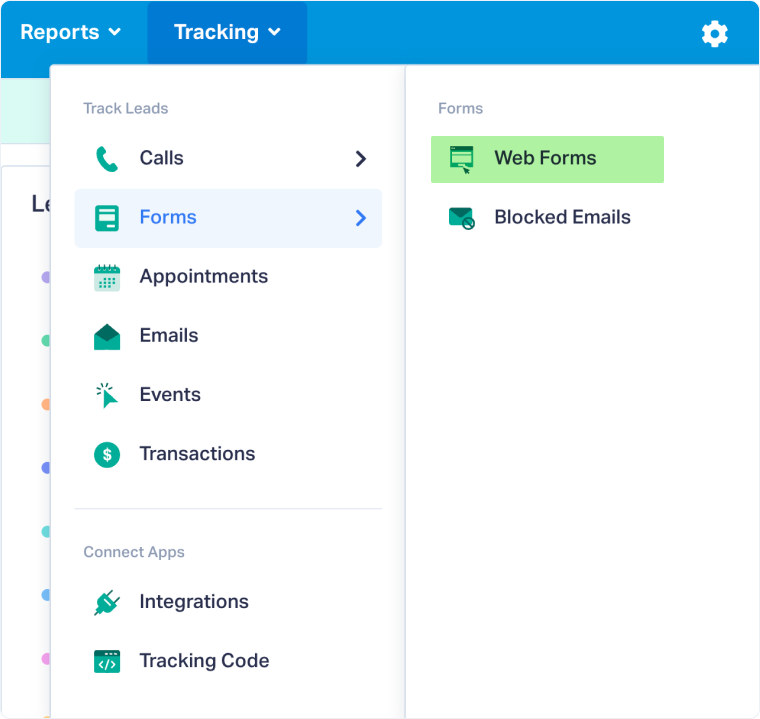
- In your WhatConverts profile, select “Tracking” from the top menu.
- Select “Forms” and choose “Web Forms”.
- Click “Add Web Form”.
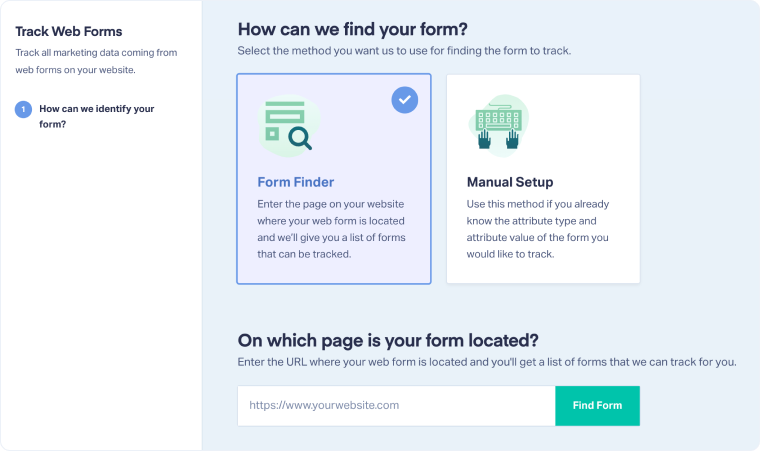
- Choose “Form Finder” as your setup method.
- Enter the URL where your form is located, then click “Find Form”.
- Wait for Form Finder to automatically scan the page for forms.
Select and Name Your Forms
After the scan completes:
- You can now select multiple forms to track from the detected list.
- The form name will automatically use a value found in the form’s HTML attributes, for example, a title or aria-label.
- Example: A form titled “Contact Us” will appear as Contact Us - 12345 (with a unique 5-digit number).
- If the attribute value is longer than 40 characters, the form name will default to the current date instead.
Once selected, click “Save” to begin tracking submissions from those forms.
Related Topics
Was this page helpful?
Get a FREE presentation of WhatConverts
One of our marketing experts will give you a full presentation of how WhatConverts can help you grow your business.
Schedule a Demo






