


Add Funds Automatically with Auto Funding
Auto Funding automatically adds funds to your account when the balance falls below a specific threshold. This ensures there are always enough funds available to cover usage fees and prevent service interruptions.
Set up Auto Funding
To enable Auto Funding:
- Access the Master Account Settings and go to "Billing".
- Click "Add Funds".
- Under the Auto Funding tab, click "Enabled".
- Under the If Balance Falls Below section, select the balance amount that will trigger Auto Funding.
- Under the Fund Balance To section, select the target amount of funds when Auto Funding is triggered.
- Click "Update Auto Funding" to save your settings.
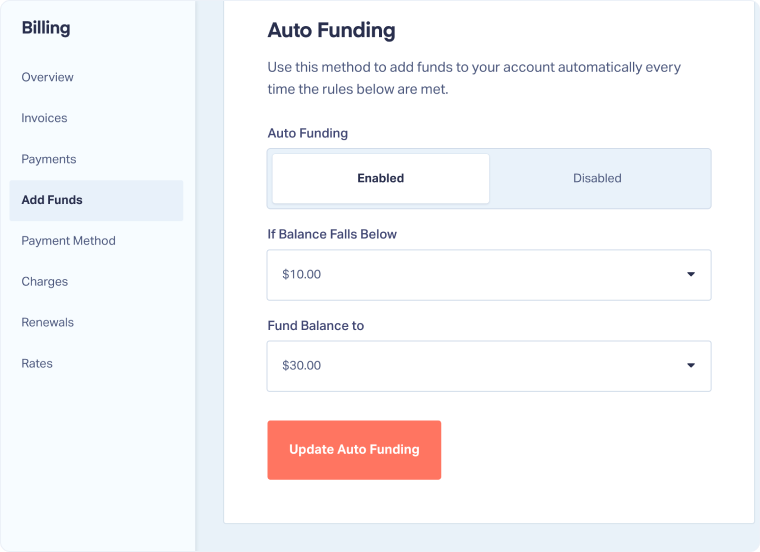
Tip: To better understand auto funding, look at the screenshot above. If Balance Falls Below is $10 and Fund Balance To is $30, when your balance hits $9.99 or less, WhatConverts will automatically add the difference to bring your balance back up to $30. It does not add $30 on top of your current balance.
Related Topics
Was this page helpful?
Get a FREE presentation of WhatConverts
One of our marketing experts will give you a full presentation of how WhatConverts can help you grow your business.
Schedule a Demo






