















































Track Facebook Messenger Chats with Chatfuel
Chatfuel is a chatbot platform that helps you build automated bots for Facebook Messenger without coding. WhatConverts can track Facebook Messenger conversations through a Chatfuel bot integrated with Zapier, which captures chat responses and visitor information along with marketing attribution data showing that the conversation came from Facebook.
Note: You'll need a Chatfuel account, a Facebook Business Page, and a Zapier account.
Set Up Chatfuel Bot and Zapier Integration
To track Facebook Messenger chats with WhatConverts, you'll need to create a chatbot in Chatfuel, configure it to collect visitor information, and connect it to WhatConverts through Zapier.
Step 1: Set Up Chat Bot Automation in Chatfuel
- Go to Chatfuel and set up a new bot by clicking "Create from Template".
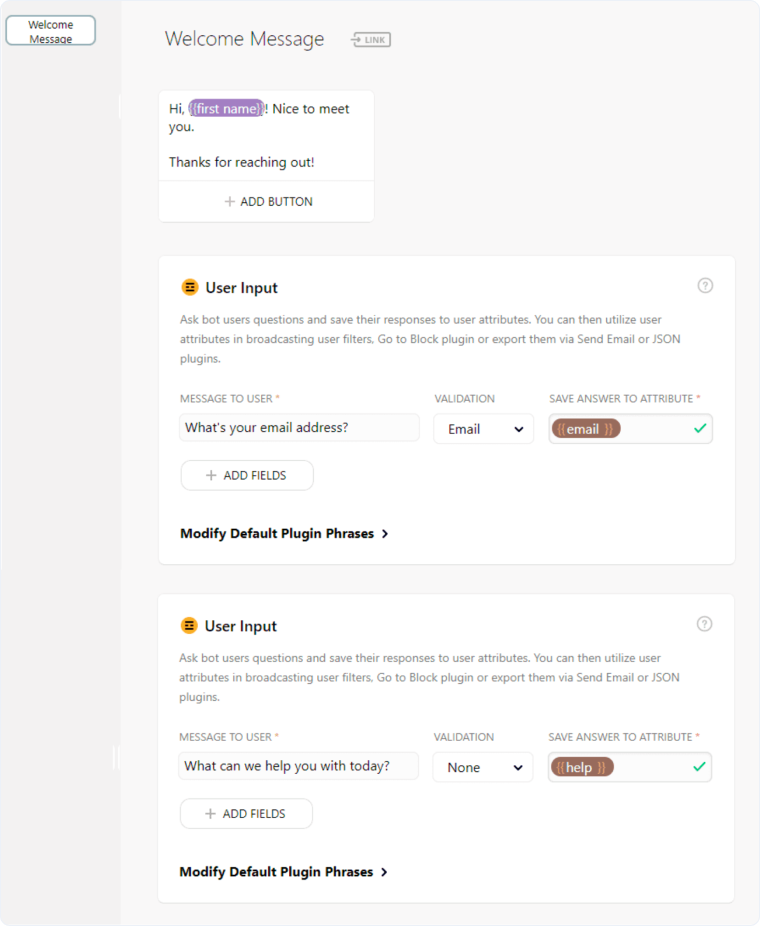
- Edit the default Welcome Message that greets visitors when they begin a chat on Facebook Messenger.
- For a simple bot to follow up with a user, click "+" under Add A Card. Select "User Input". For a simple follow-up, add user input boxes to ask for an Email Address and a second to ask for a message to send back to your team.
- For each User Input card, you can create dynamic fields to import. In the example below, the first User Input asks for their email address with the dynamic field of {{email}}; the second asks what their message is with the dynamic field of {{help}}.
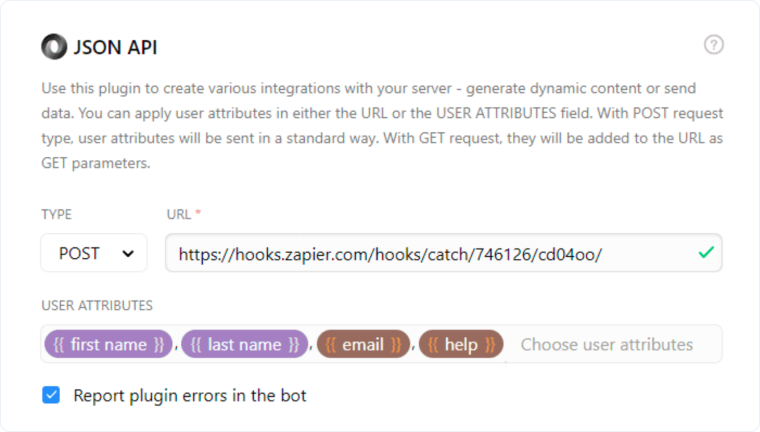
- Click "+" under Add A Card. Select "JSON API".
Step 2: Create a Connection in Zapier
- Go to Zapier and click "Create Zap". Select "Webhooks by Zapier" as your Trigger App and "Catch Hook" as your Trigger Event. Click "Continue". Leave Pick off a Child Key empty.
- Copy the Webhook URL created by Zapier on the Pick A Sample To Set Up Your Zap page.
- Go back to your Chatfuel bot. Paste the URL into the URL box under your JSON API card. Select "POST" as the Type in your dropdown. Select the user attributes you wish to pass to WhatConverts. In the example below, we are sending {{first name}}, {{last name}}, {{email}}, {{help}}.
- Go to the Facebook Business Page where your Chatfuel bot is connected and start a test chat. Make sure to answer the questions you've set up.
- Go back to Zapier. On the Pick A Sample To Set Up Your Zap page, click "Ok, I did this". Zapier will now find your test submission to your Facebook Chat.
- Select the sample and click "Continue".
- Select "WhatConverts" as your Action App and "Create Lead" as your Action Event. Connect to the WhatConverts profile you are sending your Facebook Messenger leads to.
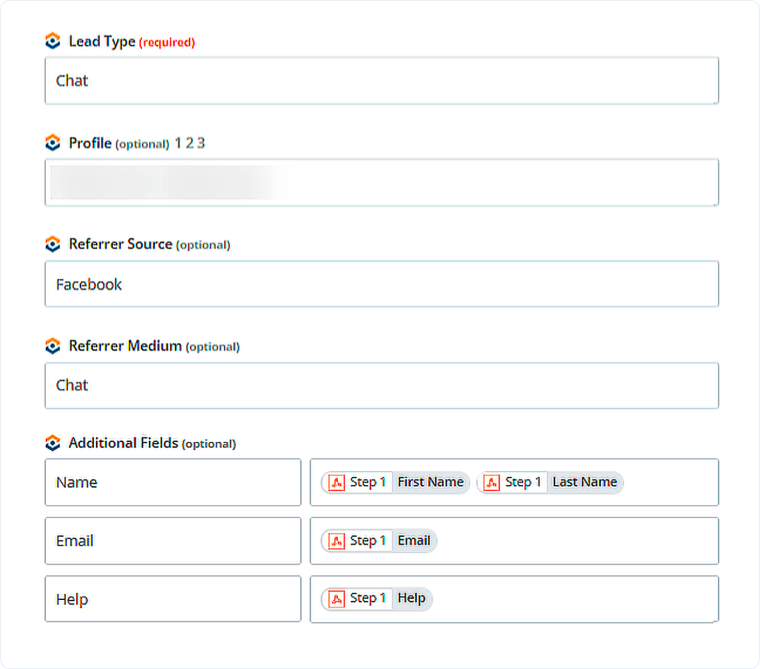
- On the Set up WhatConverts Lead stage of the Zap, choose the following:
- Lead Type: Chat
- Profile: Your WhatConverts Profile
- Referrer Source: Facebook
- Referrer Medium: Chat
- Add the following fields under Additional Fields:
- Name: First Name Last Name
- Email: Email
- Message: Help
- Continue through and click "Send Test to WhatConverts".
Your Chatfuel integration is now complete. WhatConverts will capture all Facebook Messenger conversations from your Chatfuel bot through Zapier and create leads with attribution data.
Note: If you have not set up a WhatConverts account in Zapier, you can follow the detailed instructions in Connect WhatConverts to Zapier.
Related Topics
Get a FREE presentation of WhatConverts
One of our marketing experts will give you a full presentation of how WhatConverts can help you grow your business.
Schedule a Demo






