


Create a Dynamic Number Pool for All Traffic
Dynamic Number Pools automatically swap your website’s phone number based on how visitors find your site. This ensures each lead is accurately attributed to its traffic source, whether it came from organic search, paid ads, social platforms, or direct visits.
Tip: For an overview of number pool tracking, see What is Call Tracking?
Set Up a Dynamic Number Pool for All Traffic
Before you begin, make sure your WhatConverts tracking code is installed on your website. The dynamic number pool uses this code to display the correct number to each visitor.
- In your WhatConverts profile, select “Tracking” from the top menu.
- Choose “Calls”, then “Phone Numbers”.
- Click “+ Add Dynamic Pool”. Select “Advanced Setup”.
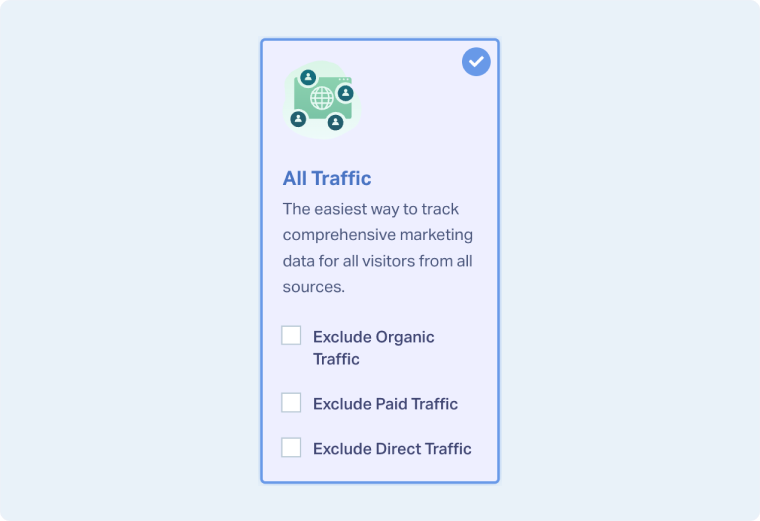
- Add a swap number, then select “All Traffic”.
- Click “Next Step”.
- Choose how many numbers you want in your pool using the slider to indicate Daily Visitors. (A minimum of four numbers is suggested)
- Select the Country, Phone Number Type (Local or Toll-Free), and Area Code.
- Click “Find Numbers”. Review the available options, then click “Next Step”.
- Enter the Destination Number (the number calls will forward to) and give your pool a descriptive name, such as “Main Website Pool” or “All Traffic Calls”.
- Click “Next Step”.
- Review optional features like Call Recording, Call Greeting, and Call Whisper, then click “Finish”.
How All Traffic Pools Work
When a visitor arrives on your site, WhatConverts dynamically replaces your website’s displayed phone number with a number from the pool. Each number is tied to a specific visitor session, allowing the system to accurately track the source, medium, and campaign that generated the call.
All Traffic pools automatically track visitors from:
- Organic search (Google, Bing, Yahoo, etc.)
- Paid ads from any platform
- Referral traffic from other websites
- Direct visits or manually entered URLs
Tip: You can exclude either Direct, Paid, or Organic traffic by using the checkbox in the All Traffic panel. This will restrict the numbers for swapping for whichever source(s) are excluded.
Related Topics
Get a FREE presentation of WhatConverts
One of our marketing experts will give you a full presentation of how WhatConverts can help you grow your business.
Schedule a Demo






