


Trigger a Zap from a New Lead in WhatConverts
The "New Lead" trigger allows you to start Zapier workflows automatically when WhatConverts receives a new lead. Use this trigger to send leads to your CRM, notify your team, create tasks, or automate any action across thousands of apps.
Learn more in What is the Zapier Integration?
How It Works
The New Lead trigger monitors your WhatConverts account for incoming leads. When a new lead is received that matches your selected lead types, Zapier automatically starts your workflow and sends the lead data to your connected apps.
Set Up the New Lead Trigger
To use WhatConverts as a trigger in your Zap:
- Log in to your Zapier account.
- In the left-hand menu, click "+ Create", then click "Zaps".
- Use the AI Copilot to enter the integration you are setting up, or click the Trigger Box and search for "WhatConverts".
- Choose WhatConverts as the Trigger app.
- Select "New Lead" as the Trigger Event. Click “Continue”.
- Connect your WhatConverts account by following the prompts (see Connect WhatConverts to Zapier for detailed instructions).
- Configure which lead types should trigger the Zap:
- Web Form
- Phone Call (Completed, Modified, or In Progress). Select which phone call type to use. Most cases will use the Completed Phone Call.
- Chat (Completed, In Progress) - Same as Phone Call.
- Transaction
- Appointments
- Text Messages
- Custom Events
- Others
- Select your Profile from the Profile (required) dropdown menu.
- Click “Continue”.
- Click “Test Trigger” to pull in sample leads from your WhatConverts account.
- Select a lead from the samples and click “Continue”.
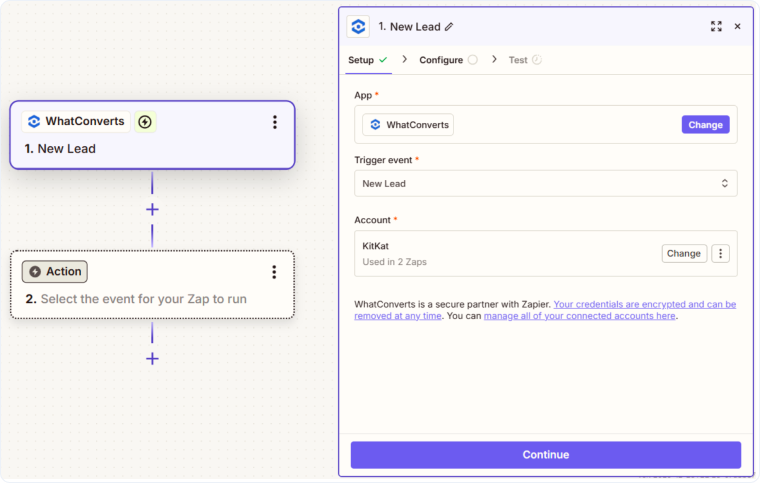
Once the trigger is set up, you can add action steps to send the lead data to other apps, create notifications, update records, or perform any automated workflow.
Common Use Cases for the New Lead Trigger
- Send leads to your CRM: Automatically create new contacts or deals in Salesforce, HubSpot, Pipedrive, or other CRMs
- Notify your team: Send Slack messages, emails, or SMS notifications when high-value leads convert
- Create tasks: Automatically add follow-up tasks in project management tools like Asana, Trello, or Monday.com
- Update spreadsheets: Log new leads in Google Sheets or Airtable for reporting and analysis
- Trigger marketing automation: Add leads to email sequences or update contact records in marketing platforms
Related Topics
Get a FREE presentation of WhatConverts
One of our marketing experts will give you a full presentation of how WhatConverts can help you grow your business.
Schedule a Demo






