















































Enable Two-Factor Authentication (2FA)
Two-Factor Authentication (2FA) adds an extra layer of security to your WhatConverts account by requiring a verification code in addition to your password.
Enable Two-Factor Authentication
To enable Two-Factor Authentication:
- Click the User Settings icon in the top-right corner of your account.
- Select “Security”.
- Under Account Security, select the 2FA method you want to use:
- Email (default)
- Authenticator App
- Text Message / SMS
- Follow the on-screen steps to complete setup.
Once enabled, you will be required to enter a verification code each time you sign in.
Set Up Your Account Security Settings
The Account Security page includes the following settings related to Two-Factor Authentication.
Primary Email Address
The Primary Email Address is used to sign in to your WhatConverts account and receive email-based 2FA verification codes.
- You can update this email at any time.
- A verification code is sent to the new email address when changed.
- The email must be verified before it can be used for login or 2FA.

Primary Phone Number
The Primary Phone Number is used to receive 2FA verification codes via text message.
To add or update your phone number:
- Enter your phone number.
- Click Send Verification Code.
- Enter the verification code sent to your phone.

2-Factor Authentication
This section controls how verification codes are delivered when you sign in.
Note: Email authentication is enabled by default, and authentication codes are sent to the email address listed on the Account Security page. After setting up your Primary Phone Number and Authenticator App, you can select a new default method by clicking the check mark next to it and also set a backup method if desired.
Email (Default)
- Email-based authentication is enabled by default.
- After entering your password, a one-time verification code is sent to your primary email address.
- Enter the verification code to access your account.
Text Message (Default)
- Available when a Primary Phone Number is configured.
- During login, select Send New Text to receive your verification code via text message.
- Enter the verification code to access your account.
Authenticator App
Using an authenticator app provides the highest level of security and does not rely on email or text message delivery.
To set up your authenticator app while logged into your account:
- Click the User Settings icon and select Security.
- Under 2-Factor Authentication, select Authenticator App.
- Scan the QR code using your authenticator app.
- Enter the 6-digit code generated by the app.
- Save your recovery code in a secure location.
- Complete the setup.
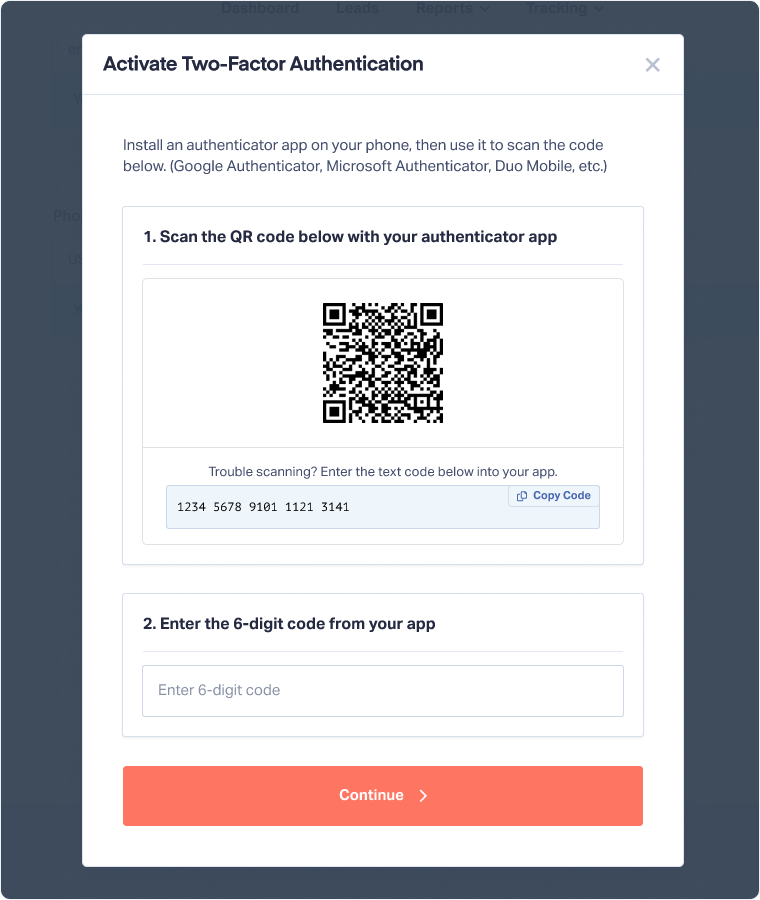
After setup, your authenticator app will generate a verification code each time you sign in.
First-Time Login Setup
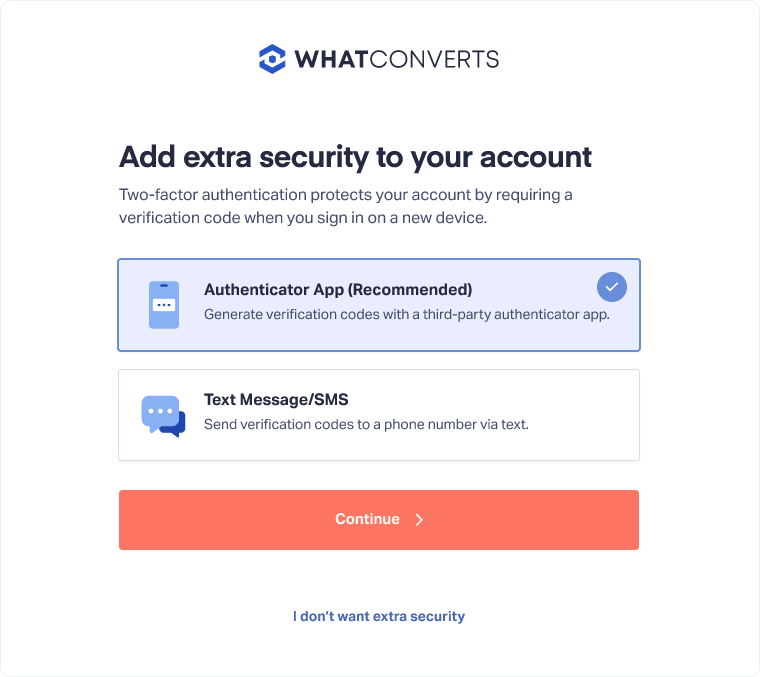
When you log in to your WhatConverts account for the first time, you’ll be prompted to set up Two-Factor Authentication using an authenticator app.
- You can complete the setup during your first login, or
- Skip the prompt and enable 2FA later from the Account Security page.
Related Topics
Get a FREE presentation of WhatConverts
One of our marketing experts will give you a full presentation of how WhatConverts can help you grow your business.
Schedule a Demo






