


Receive Voicemail Notifications with Zapier
When a caller leaves a voicemail, you can automatically receive notifications via email, Slack, SMS, or any platform connected through Zapier. This workflow uses the WhatConverts "New Lead" trigger, filters for voicemail calls, and sends notifications to your preferred platform.
Learn more in What is the Zapier Integration?
Note: Using the Voicemail Call Flow feature, callers can leave voicemails that can be listened to directly from your WhatConverts Lead Manager.
How It Works
This Zap monitors your WhatConverts account for new phone call leads. When a voicemail is detected (based on the Answer Status field), it automatically sends a notification with the voicemail details and playback URL to your chosen platform.
Set Up Voicemail Notifications
Follow these steps to create your voicemail notification Zap:
Step 1: Set Up the Trigger
To set up the trigger:
- Log in to your Zapier account.
- In the left-hand menu, click "+ Create", then click "Zaps".
- Use the AI Copilot to enter the integration you are setting up, or click the Trigger Box and search for "WhatConverts".
- Choose WhatConverts as the Trigger app.
- Select "New Lead" as the Trigger Event.
- Click “Continue”.
- Connect your WhatConverts account by following the prompts (see Connect WhatConverts to Zapier for detailed instructions).
- On the next step, Configure, choose the lead type filters:
- Select "No" for all lead types except Phone Calls (Completed)
- Select "Yes" for Phone Calls (Completed)
- Select your Profile from the Profile (required) dropdown menu.
- Click “Continue”.
- Click “Test Trigger” to pull in sample leads.
- Select a lead from your sample calls and click “Continue”.
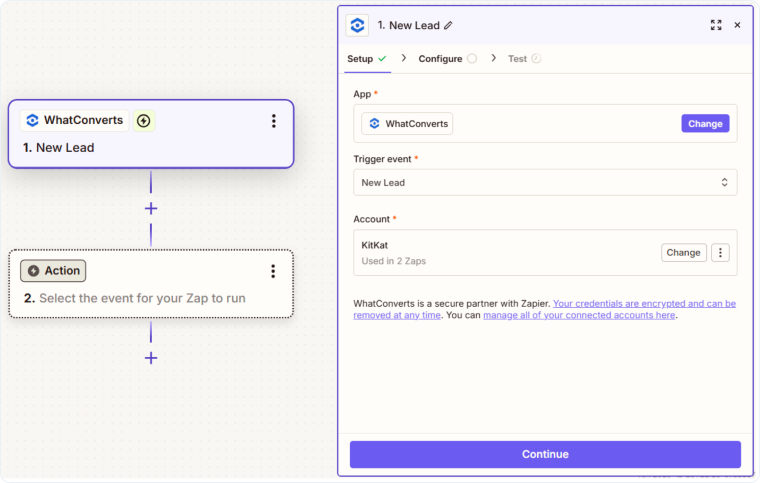
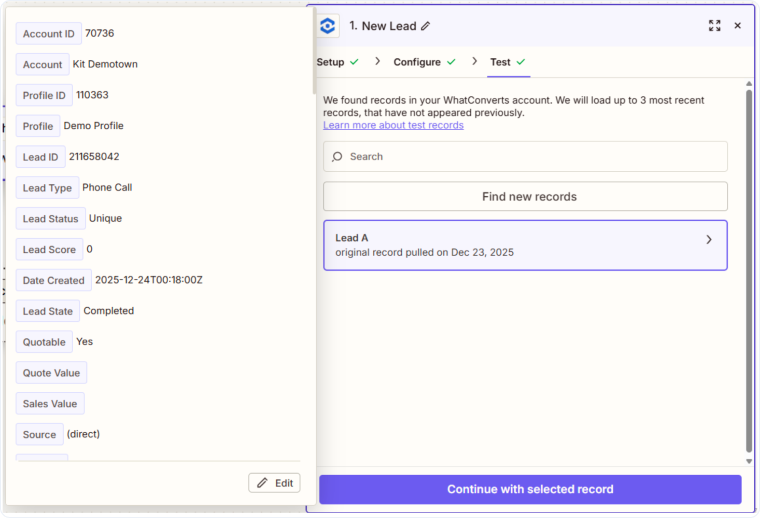
Note: While Zapier is searching for samples, you can place a test call to one of your WhatConverts tracking numbers and leave a voicemail message to generate a sample lead.
Step 2: Add a Filter for Voicemails
Once the trigger is set up, add a filter for voicemails:
- Click the "+" button to add a new step.
- Search for and select "Filter by Zapier".
- On the Configure & Test section:
- In the first dropdown, select "Answer Status"
- In the second dropdown, select "(Text) Contains"
- In the third box, type "Voicemail"
- Click “Continue”.
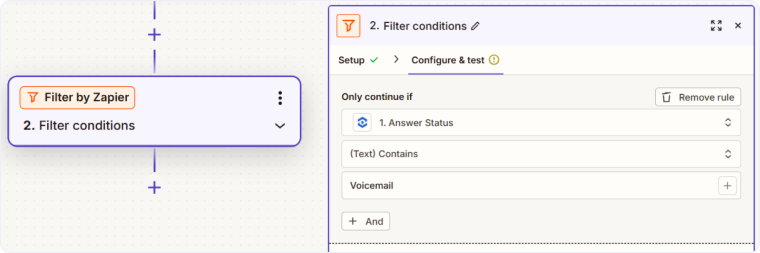
This filter ensures the Zap only continues when a voicemail is detected.
Step 3: Send the Notification
To send the notification:
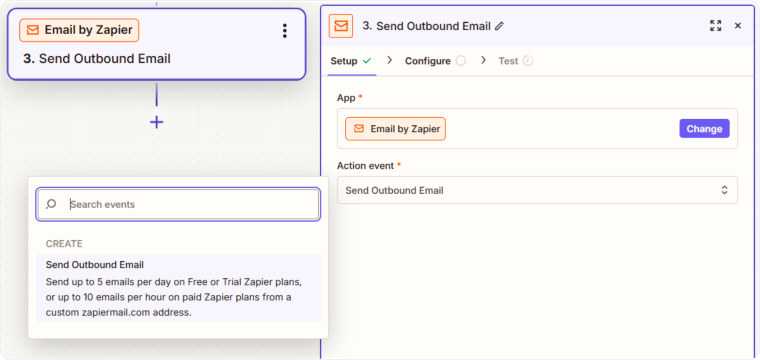
- Click the "+" button to add another step.
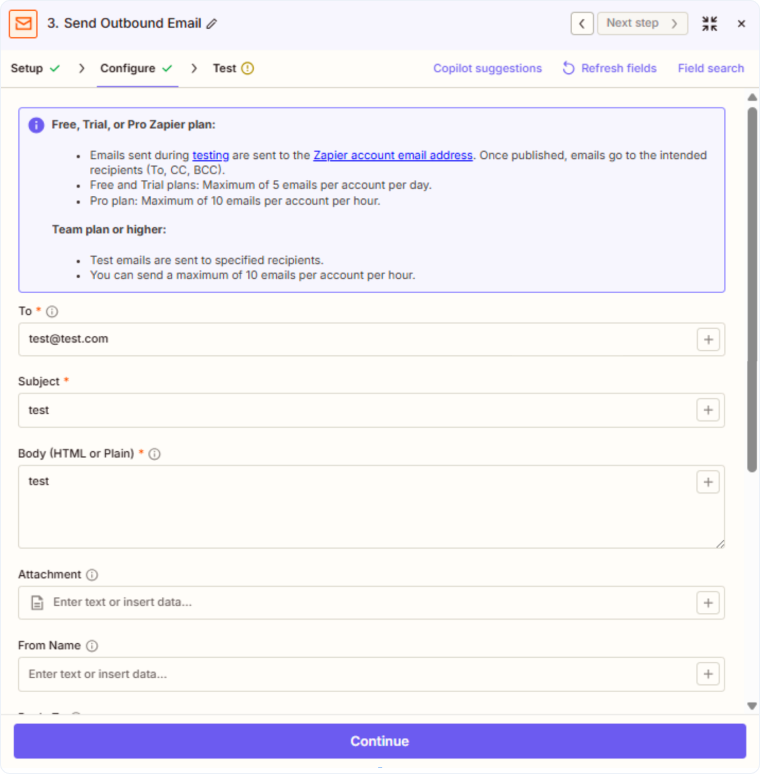
- Search for and select "Email by Zapier" as the Action App (or choose another platform like Slack, SMS, etc.).
- Select "Send Outbound Email" as the Action Event.
- Click “Continue”.
- On the Configure page, fill in and customize the following fields:
- To: The email address where you want notifications sent
- Subject: Customize the subject line (e.g., "New Voicemail from {Caller Number}")
- Body: Include relevant lead information such as:
- Brief message (e.g., "You have a new voicemail")
- Caller Name
- Caller Number
- Voicemail Play URL (so you can listen to the voicemail)
- Lead Received Date/Time
- Marketing data (Source, Medium, Campaign, etc.)
- From Name: The name you want the notification to appear from
- Reply to: The email address for any replies to this notification
- Click “Continue”.
- Click “Test & Continue” to send a test notification.
- Once the test is successful, turn your Zap On by selecting “Publish”.
Related Topics
Get a FREE presentation of WhatConverts
One of our marketing experts will give you a full presentation of how WhatConverts can help you grow your business.
Schedule a Demo






