


Create a Lead in WhatConverts with Zapier
The "Create Lead" action allows you to automatically push leads into WhatConverts from thousands of apps connected through Zapier. Use this action to import leads from form builders, chat platforms, CRMs, or any other platform that captures lead data.
Learn more in What is the Zapier Integration?
How It Works
The Create Lead action pulls data from a trigger app (such as a form submission, a new contact in a CRM, or a chat conversation). It creates a new lead in WhatConverts, mapping all relevant information to the appropriate fields.
Set Up a Create Lead Workflow
Follow these steps to automatically create leads in WhatConverts:
Step 1: Choose Your Trigger
- Log in to your Zapier account.
- In the left-hand menu, click "+ Create", then click "Zaps".
- Select a trigger app that captures lead data:
- Form builders (Typeform, Gravity Forms, JotForm, Formstack)
- Chat platforms (Intercom, Drift, LiveChat)
- CRMs (when new contacts are added)
- Email platforms (when specific emails are received)
- Any other app that generates leads
- Choose the appropriate trigger event (e.g., "New Form Submission", "New Chat Conversation")
- Configure your trigger settings and connect your account.
- Click “Continue” and test your trigger to pull in sample data.
Step 2: Add the Create Lead Action
- Click the "+" button to add a new action step.
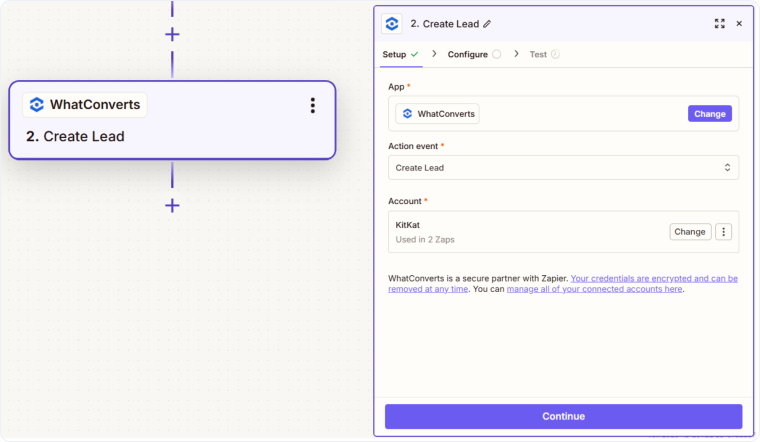
- Search for and select "WhatConverts" as the Action App.
- Choose "Create Lead" as the Action Event.
- Click “Continue”.
- Connect your WhatConverts account if you haven't already.
- Configure the lead fields by mapping data from your trigger:
- Lead Type (required). Select the type of lead.
- Profile. Select the WhatConverts profile where the lead should be created
- Referrer Source. Map or enter the traffic source (e.g., "facebook", "google", "referral")
- Referrer Medium. Map or enter the medium (e.g., "cpc", "organic", "email")
- Referrer Campaign. Map or enter the campaign name
- Referrer Content. Map or enter the ad content or ad group
- Referrer Term. Map or enter the keyword
- Form Name. Enter a name for the form or lead source
- Contact Name. Map the lead's full name
- Email Address. Map the lead's email address
- Phone Number. Map the lead's phone number
- Quote Value. Map or enter the estimated value
- Sales Value. Map or enter the actual sales value
- Additional Fields. Add custom field mappings at the bottom by entering field names and mapping values
- Click “Continue”.
- Click “Test & Continue” to create a sample lead in WhatConverts.
- Verify the lead appears correctly in your WhatConverts Lead Manager.
- Publish your Zap to start automatically creating leads.
Note: After creating leads with additional fields, you'll need to set up field mappings in WhatConverts to properly display and utilize the custom data. See Add a Field Mapping for instructions.
Common Use Cases for Creating Leads
- Import Facebook Lead Ads: Automatically push Facebook Lead Ad submissions into WhatConverts for unified tracking.
- Track chat conversations: Create leads from Intercom, Drift, or other chat platforms to track attribution.
- Import form submissions: Connect Gravity Forms, Typeform, or other form builders to capture leads not on your website.
- Sync CRM contacts: When new contacts are added to your CRM, create corresponding leads in WhatConverts.
- Capture SMS messages: Connect SMS platforms like Twilio to track incoming text messages as leads.
Related Topics
Get a FREE presentation of WhatConverts
One of our marketing experts will give you a full presentation of how WhatConverts can help you grow your business.
Schedule a Demo






