


Update a Lead in WhatConverts with Zapier
The "Update Lead" action allows you to automatically modify existing lead data in WhatConverts based on actions in other platforms. Use this action to add sales values from your CRM, change lead status, update custom fields, or sync any lead information across your tools.
Learn more in What is the Zapier Integration?
How It Works
The Update Lead action modifies an existing lead in WhatConverts by matching the Lead ID and updating specified fields with new data from your trigger app. This ensures lead information stays synchronized across all your platforms.
Note: The Lead ID is required to update a lead. If you don't have the Lead ID in your trigger data, you'll need to add a "Find Lead" action step first to search for the lead by email or phone number and retrieve the Lead ID. See Find or Create a Lead in WhatConverts with Zapier for more information.
Set Up an Update Lead Workflow
Follow these steps to automatically update leads in WhatConverts:
Step 1: Choose Your Trigger
To choose a trigger:
- Log in to your Zapier account.
- In the left-hand menu, click "+ Create", then click "Zaps".
- Select a trigger app that contains updated lead information:
- CRM platforms (when deals are updated, won, or lost)
- Project management tools (when task status changes)
- eCommerce platforms (when orders are completed)
- Any app that updates lead or customer data
- Choose the appropriate trigger event (e.g., "Updated Deal", "New Order").
- Configure your trigger settings and connect your account.
- Click “Continue” and test your trigger to pull in sample data.
Step 2: (Optional) Find the Lead if You Don't Have the Lead ID
If your trigger data includes a Lead ID from WhatConverts, then skip to Step 3. If your trigger data doesn't include the WhatConverts Lead ID:
- Click the "+" button to add a new action step.
- Search for and select "WhatConverts" as the Action App.
- Choose "Find Lead" as the Action Event.
- Configure the search using email address or phone number to locate the lead.
- The Profile field is the only required field here. Using Email and Phone Number is the most effective way to find leads.
- There are a variety of other dimensions that can be used, such as Start/End Date, Quotable, Quote/Sales Value, and more.
- The Lead ID will be available in the output for use in the next step.
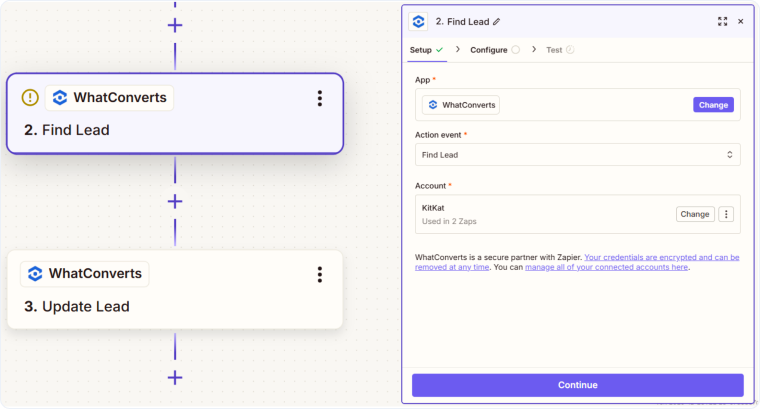
Tip: See Find or Create a Lead in WhatConverts with Zapier for detailed instructions.
Step 3: Add the Update Lead Action
To create the action:
- Click the "+" button to add a new action step (or continue from Step 1 if you don't need the Find step).
- Search for and select "WhatConverts" as the Action App.
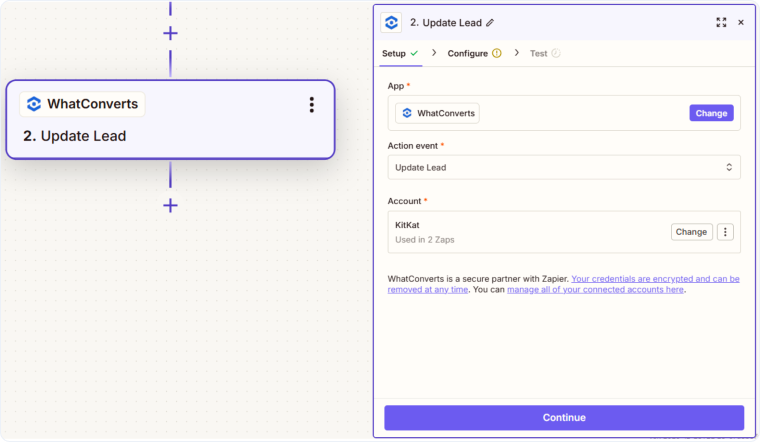
- Choose "Update Lead" as the Action Event.
- Click “Continue”.
- Connect your WhatConverts account if you haven't already.
- Configure the update fields:
- Lead ID (required). Map the Lead ID from your trigger (or from the Find Lead step)
- Quotable. Mark as quotable (Yes/No)
- Quote Value. Update the estimated value
- Sales Value. Update the actual sales value
- Additional Fields. Update any additional fields as needed
- Click “Continue”.
- Click “Test & Continue” to update a sample lead in WhatConverts.
- Verify the lead is updated correctly in your WhatConverts Lead Manager.
- Publish your Zap to start automatically updating leads.
Common Use Cases for Updating Leads
- Sync CRM sales values: When a deal is marked as "Closed Won" in your CRM, automatically add the sales value to the corresponding lead in WhatConverts.
- Track revenue. When an order/job is completed, update the WhatConverts lead with the final transaction value.
- Mark qualified leads. When leads meet certain criteria in your CRM, automatically mark them as quotable in WhatConverts.
- Assign leads to users. When leads are assigned to sales reps in your CRM, update the User ID in WhatConverts to match.
Related Topics
Get a FREE presentation of WhatConverts
One of our marketing experts will give you a full presentation of how WhatConverts can help you grow your business.
Schedule a Demo






