


Find or Create a Lead in WhatConverts with Zapier
The "Find Lead" action allows you to search for existing leads in WhatConverts and optionally create a new lead if no match is found. This action is essential for workflows that require updating existing leads without the Lead ID, or for avoiding duplicate leads.
Learn more in What is the Zapier Integration?
How It Works
The Find Lead action searches your WhatConverts account using criteria like email address, phone number, or other fields. If a matching lead is found, Zapier returns the Lead ID and lead data for use in subsequent steps. If no match is found, you can optionally create a new lead automatically.
This action is commonly used before an "Update Lead" step when you don't have the Lead ID but need to update an existing lead based on email or phone number.
Set Up a Find or Create Lead Workflow
Follow these steps to search for and optionally create leads in WhatConverts:
Step 1: Choose Your Trigger
To choose your trigger:
- Log in to your Zapier account.
- In the left-hand menu, click "+ Create", then click "Zaps".
- Select a trigger app that contains lead information you want to search for or create.
- Configure your trigger settings and connect your account.
- Click “Continue” and test your trigger to pull in sample data.
Step 2: Add the Find Lead Action
To create the lead action:
- Click the "+" button to add a new action step.
- Search for and select "WhatConverts" as the Action App.
- Choose "Find Lead" as the Action Event.
- Click “Continue”.
- Connect your WhatConverts account if you haven't already.
- Configure the search criteria:
- Profile (required). Select the WhatConverts profile to search within
- Lead ID. Search by specific Lead ID (if available)
- Lead Type (required if creating). Select the type (Web Form, Phone Call, Chat, Transaction, etc.)
- Lead Status. Filter by status
- Start Date. Beginning of date range to search
- End Date. End of date range to search
- Quotable. Filter for quotable leads
- Quote Value. Filter by quote value
- Sales Value. Filter by sales value
- Caller Number. Search by phone number
- Email Address. Search by email address
- User ID. Filter by assigned user
- Spam. Include or exclude spam leads
- Duplicate. Include or exclude duplicate leads
- Source. Filter by traffic source
- Medium. Filter by medium
- Campaign. Filter by campaign name
- Content. Filter by ad content
- Keyword. Filter by keyword
- Check the box for "Create WhatConverts Lead if it doesn't exist?" if you want to automatically create a new lead when no match is found.
- If you enabled "Create if not found", configure the create lead fields:
- Lead Type (required). Select the type of lead to create
- Map all relevant fields (Contact Name, Email, Phone, Source, Medium, Campaign, etc.)
- Add any additional custom field mappings
- For more information, reference Create a Lead in WhatConverts with Zapier.
- Click “Continue”.
- Click “Test & Continue” to search for a sample lead (or create one if no match is found).
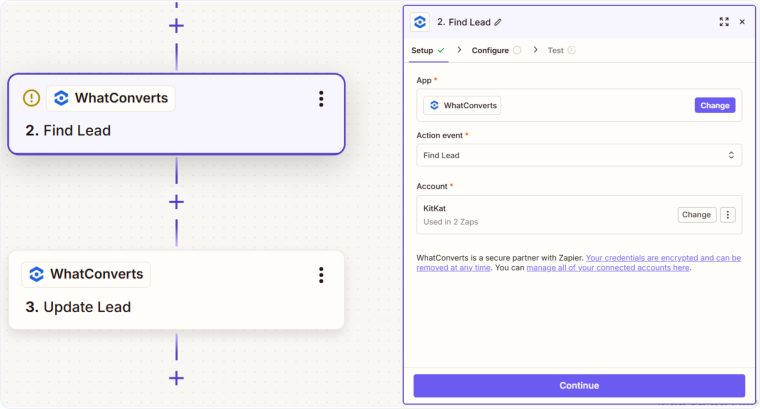
Step 3: Use the Lead Data in Subsequent Steps
To use that lead data:
- Click the "+" button to add another action step.
- Choose your desired action (e.g., "Update Lead in WhatConverts", "Create Deal in CRM", etc.).
- Map the Lead ID from the Find Lead step to the appropriate field.
- Configure the rest of your action settings.
- Click “Continue” and test your action.
- Publish to turn your Zap on and activate the workflow.
Common Use Cases for Find or Create Lead
- Update existing leads without duplicates: Search for a lead by email before updating, and only create a new lead if one doesn't exist.
- Sync CRM to WhatConverts: When a deal is updated in your CRM, find the corresponding WhatConverts lead by email and update the sales value.
- Deduplicate lead imports: Before creating leads from external forms, search for existing leads by phone number to avoid duplicates.
- Enrich existing lead data: When new information becomes available in another platform, find the lead and update specific fields without creating duplicates.
Related Topics
Get a FREE presentation of WhatConverts
One of our marketing experts will give you a full presentation of how WhatConverts can help you grow your business.
Schedule a Demo






