Understand the Organization Settings
The Organization is the top level of your structure, where you manage billing, usage, and global settings.
Access the Organization Settings
When logging in to your WhatConverts account, you'll be defaulted to the Organization level if no Account or Profile is selected.
Follow these steps to open the Organization settings:
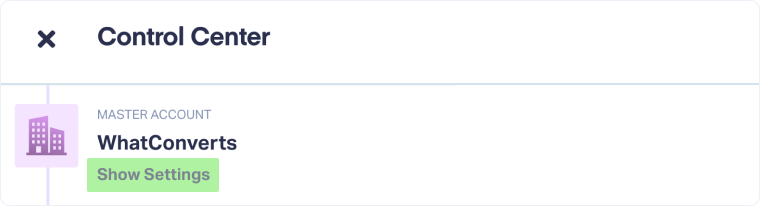
- Open the Control Center.
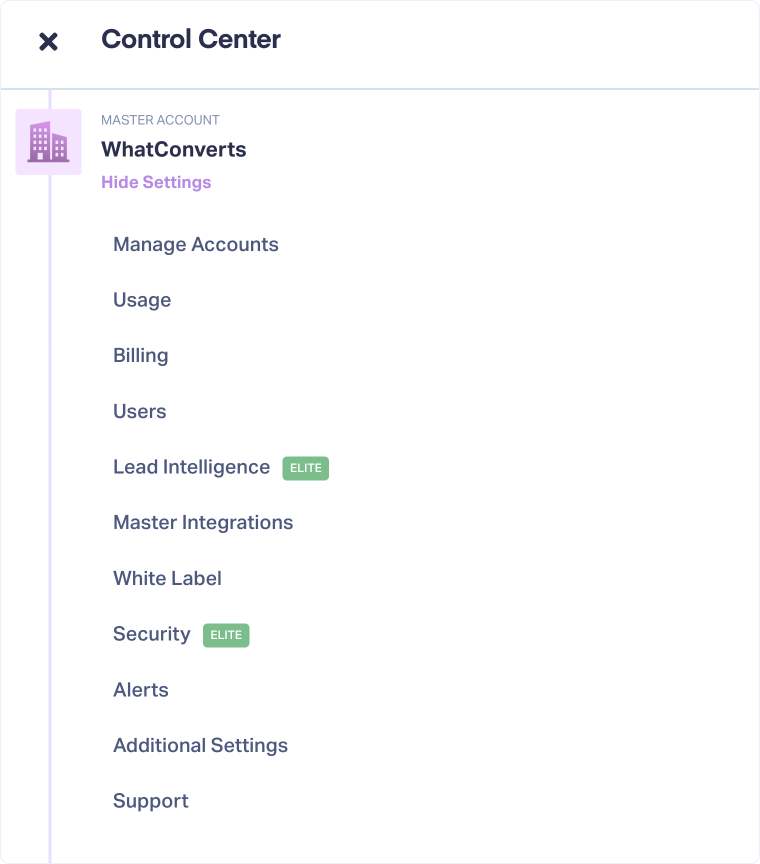
- Under the Organization, click "Show Settings."
- The full list of Organization Settings appears.

Note: You can use the Account Navigator to move across Organizations, Accounts, and Profiles.
Organization Settings Overview
From the organization Settings, you have access to:
- Manage Accounts: See your Organization details (e.g., Organization ID, renewal cost, included usage), edit your MA (e.g., change plan), add new Accounts, or access existing Accounts.
- Usage: View lead volume, tracking numbers, cost, and other usage information broken down per Account.
- Billing: Update payment info, view invoices, check your charges, and more.
- Users: Add Organization and Account Users to grant access to the system.
- Roles: Assign and manage permission levels for each user
- Lead Intelligence: Use automation rules to qualify, categorize, and value leads across all Profiles (Elite plans only).
- Master Integrations: Connect all Profiles to third-party tools from one place.
- White Label: Customize your platform's branding with your own logo and color palette.
- Security: Configure SSO and other advanced security options (Elite plans only).
- Alerts: Trigger notifications for key activities across all profiles within your Organization.
- Additional Settings: Access controls like currency, attribution (Elite plans only), lookback window, blocked emails, and more.
Note: Only Organization Users can access this level. Account Users won't see Organization options.
Related Topics
Was this page helpful?
Get a FREE presentation of WhatConverts
One of our marketing experts will give you a full presentation of how WhatConverts can help you grow your business.
Schedule a Demo